


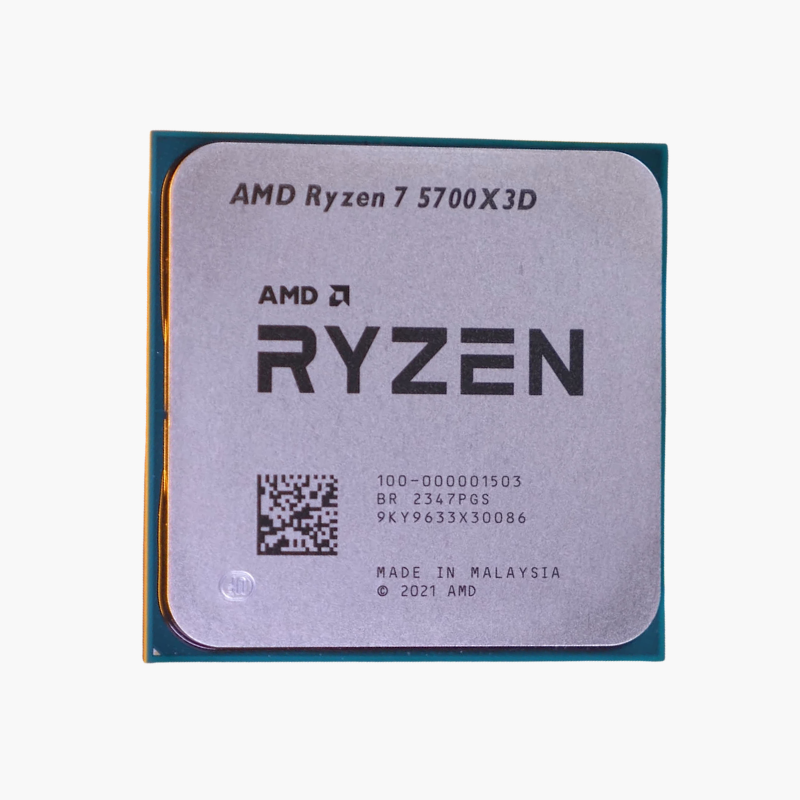
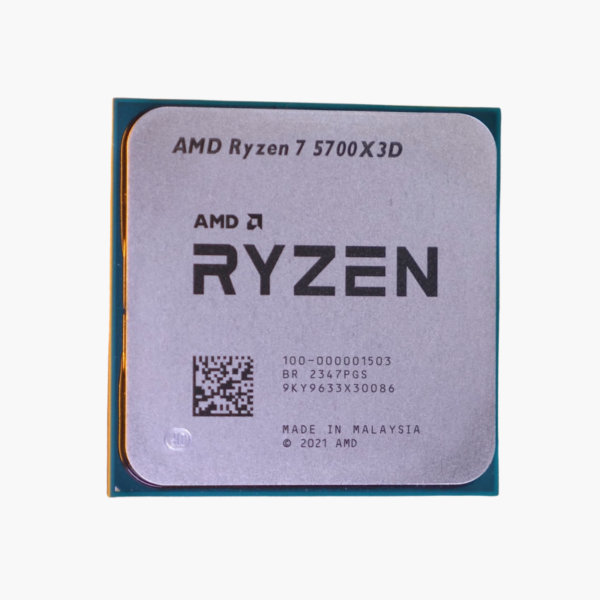
The AMD Ryzen 7 5700X3D is a Ryzen 5000 Series desktop processor based on Zen 3 with 3D V-Cache (Vermeer-X), featuring 8 cores, 16 threads and boost clocks up to 4.1 GHz. It uses the AM4 socket, supports DDR4-3200 memory and PCIe 4.0, and is aimed at gamers who want the highest possible frame rates.
Why Games Stall on Memory Latency – and How 3D V-Cache Fixes It in the Ryzen 7 5700X3D
Modern games constantly shuffle large amounts of data such as world geometry, AI states and physics. When that data does not fit in the processor’s cache, the CPU has to wait on system memory, and those waits show up as lower frame rates and uneven frame times, especially in simulation and open-world titles.
The Ryzen 7 5700X3D stacks extra cache directly onto the processor using AMD 3D V-Cache, for a total of 96MB of L3 cache. Far more of a game’s working data stays on the chip, so the cores spend less time waiting and more time preparing frames.
On AM4, it is the most cost-effective way to give an existing DDR4 system a major gaming upgrade without replacing the motherboard or memory.
Zen 3 Architecture – Unified Cache, Lower Latency
Zen 3 lets each core in a chiplet access the full shared L3 cache directly, which reduces latency and improves gaming and single-threaded performance. The Ryzen 7 5700X3D pairs this with PCIe 4.0 support for storage and graphics.
Tuning and Cooling the X3D
X3D processors on AM4 are clock-locked to protect the stacked cache, so performance comes straight out of the box with no manual tuning needed. A mid-range tower cooler is sufficient.
Setup Instructions
How to Install the AMD Ryzen 7 5700X3D
- Confirm your motherboard uses the AM4 socket with an AMD 500-series or 400-series chipset. Older 400-series and some 500-series boards need a BIOS update before they can boot this processor.
- Lift the socket lever, align the gold triangle on the Ryzen 7 5700X3D with the triangle on the socket, and let the processor drop into place without pressure. AM4 processors have pins on the underside, so handle the chip by its edges. Lower the lever to lock it.
- Apply a thin layer of thermal paste and mount an AM4-compatible cooler; a mid-range single-tower air cooler suits this 105W processor.
- Power on, enter the BIOS to confirm the processor is detected, enable the DOCP or XMP memory profile, then install Windows and the latest AMD chipset drivers.




Reviews
There are no reviews yet.