HP USB-C 100W G6 Dock (9X3V1UT)
HP USB-C 100W G6 Dock (9X3V1UT) – 100W, 3 Displays, 2.5GbE Price on RequestRequest a quote for volume pricing, availability and lead time.
Back to products
HP Thunderbolt 4 Ultra 180W G6 Dock (9X481UT)
HP Thunderbolt 4 Ultra 180W G6 Dock (9X481UT) – 180W, 4 Displays Price on RequestRequest a quote for volume pricing, availability and lead time.

HP Advanced Wireless Docking Station (F7M97AA)

SKU: F7M97AA
  • 30-Day Hassle Free Returns
  • Secure Payment Options

Price on RequestRequest a quote for volume pricing, availability and lead time.

Key Value Highlights

  • DisplayPort and VGA outputs – Connect external monitors for more screen space across spreadsheets, timelines and side-by-side apps.
  • WiGig wireless docking – Connects compatible HP notebooks to the desk setup without plugging in a cable.
  • USB 3.0 ports – USB 3.0 ports for keyboards, mice, drives and phones.
  • RJ45 Ethernet port – Wired networking for stable video calls and faster file transfers than Wi-Fi.

Description

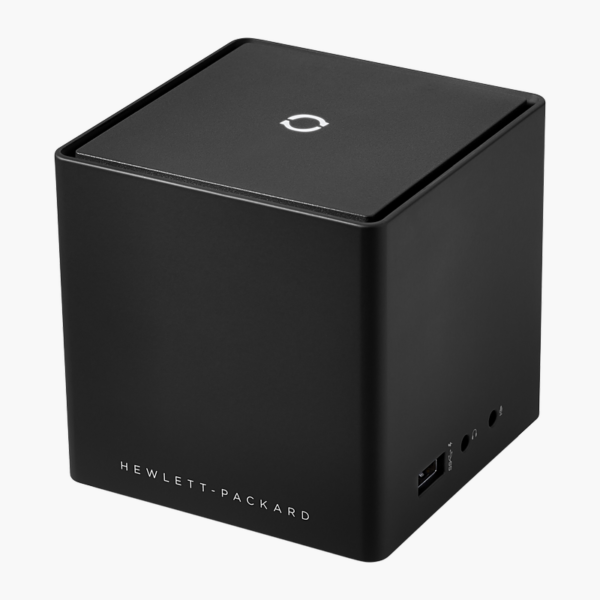
The HP Advanced Wireless Docking Station links compatible HP notebooks to monitors, USB devices and a wired network over a WiGig (802.11ad) wireless connection. Set the notebook on the desk and it connects to the dock without plugging in a cable, giving tablet-style HP Elite x2 devices a full desktop setup.

Plug in once and get straight to work.

A Desk Setup Without Plugging In

Detachable notebooks and tablets have few ports, and plugging in monitors, keyboards and network cables every time you sit down wastes time.

The HP Advanced Wireless Docking Station connects compatible WiGig-equipped HP notebooks to external displays, USB devices and Ethernet wirelessly, so the desk is ready the moment the device is in range.

External Display Output

Display support: External monitors via DisplayPort and VGA. Video outputs: DisplayPort, VGA. Display count and resolution depend on your laptop’s graphics and connection.

Ports for Every Peripheral

USB connectivity: USB 3.0 ports. It also includes RJ45 Ethernet for wired networking and Audio ports.

Setup Instructions

How to Set Up the HP Advanced Wireless Docking Station

  1. Connect the included power adapter to the dock and a wall outlet.
  2. Connect your monitor, keyboard, mouse and Ethernet cable to the dock.
  3. Install the latest HP wireless docking software and drivers on your compatible HP notebook.
  4. Bring the notebook within range of the dock and pair them using the HP wireless docking utility.

Overview

BrandHP
ModelAdvanced Wireless Docking Station
Product TypeWireless Docking Station
Host ConnectionWiGig (802.11ad) wireless
Laptop Charging (Power Delivery)Not supported
Display SupportExternal monitors via DisplayPort and VGA
Video OutputsDisplayPort, VGA
Video TechnologyWiGig 802.11ad wireless
USB-A PortsUSB 3.0 ports
EthernetRJ45 Ethernet
AudioAudio ports
Power SupplyIncluded
Part NumberF7M97AA
ConditionBrand New
In the BoxDock, host cable, power adapter, quick start guide

Frequently Asked Questions

Find answers to common questions about this product.

Customer Reviews

Reviews

There are no reviews yet.

Be the first to review “HP Advanced Wireless Docking Station (F7M97AA)”

Your email address will not be published. Required fields are marked *