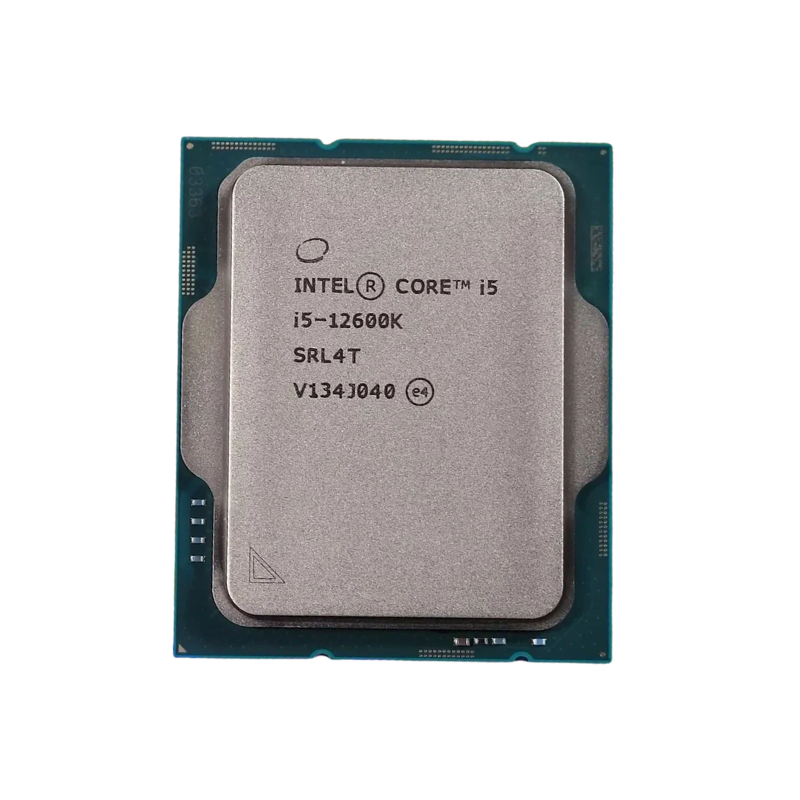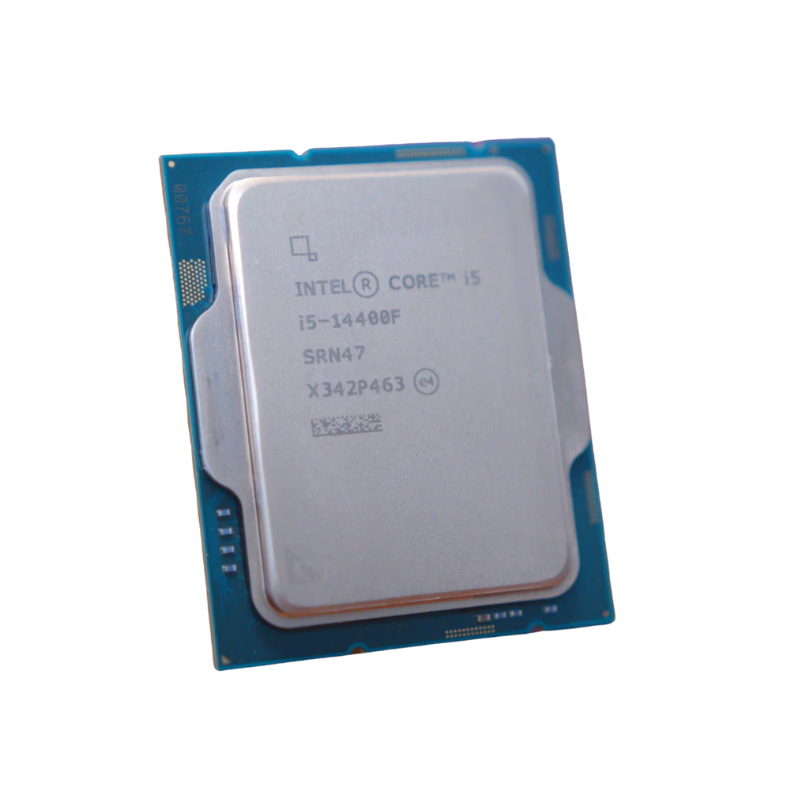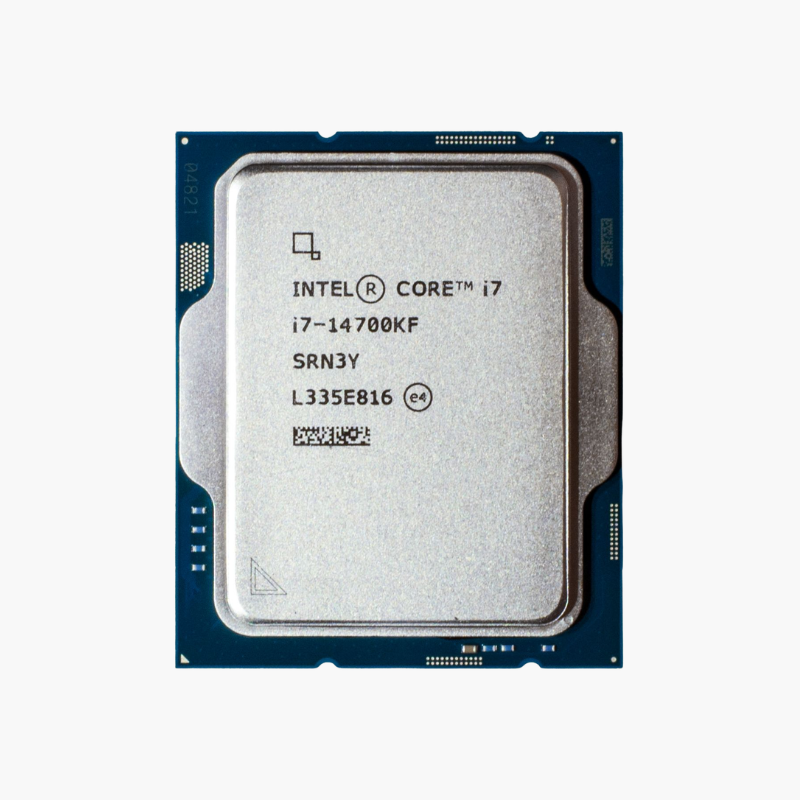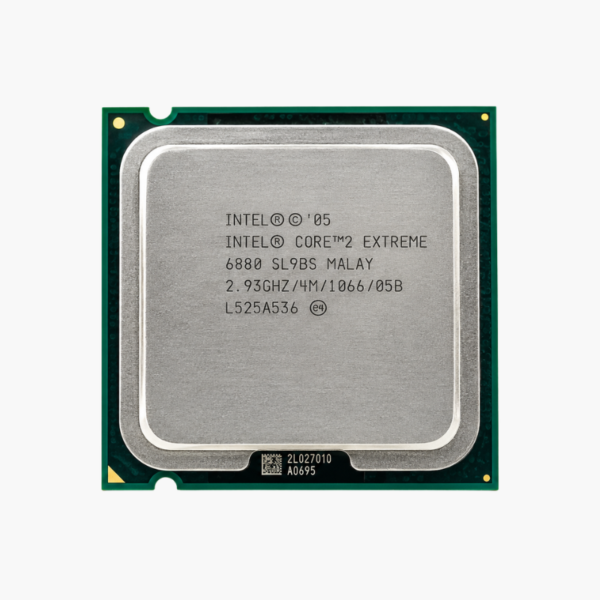


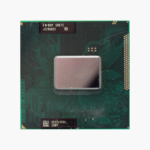
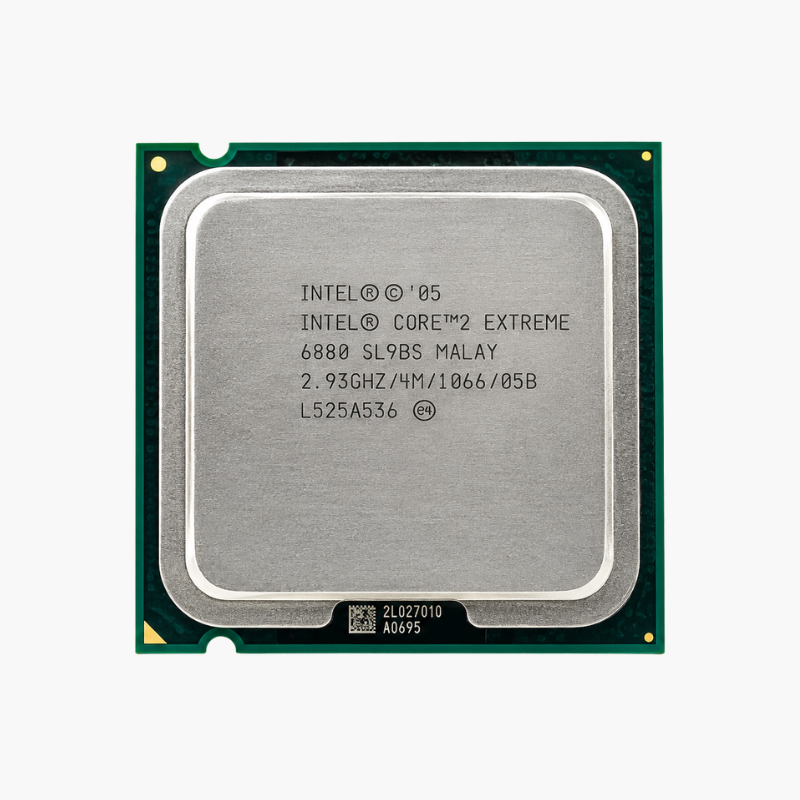
The Intel Core 2 Extreme X9000 is a 2-core, 2-thread Intel mobile processor built on Penryn (45nm), running at 2.80 GHz with 6MB L2 and a 44W TDP. It uses Socket P (478-pin) and is intended for repairing, refurbishing and upgrading compatible laptops.
Why Replacing the Processor Can Save an Older Laptop – Intel Core 2 Extreme X9000
When an older laptop fails or slows to a crawl, the usual advice is to replace it. But many business and industrial users depend on specific machines, docking setups or legacy software, and replacing the whole system costs far more than repairing it.
The Core 2 Extreme X9000 is a socketed processor, which means it can be removed and replaced. Whether you are repairing a laptop with a failed CPU, refurbishing units for resale or upgrading a lower-end model in the same family, it restores or improves performance without changing the motherboard.
With 2 cores, 2 threads and 6MB L2, it remains capable for office work, browsing, terminal and point-of-sale applications, and legacy software that requires older hardware.
Penryn Architecture
Built on Intel’s 45nm Penryn architecture, the Core 2 Extreme X9000 offers 6MB L2 and an 800 MHz FSB, with SSE4.1 instructions and better efficiency than earlier 65nm Core 2 processors.
Direct Replacement for Compatible Laptops
The Core 2 Extreme X9000 uses Socket P (478-pin) and works in laptops built on Intel GM965 / PM965 / GM45 / PM45 chipsets, provided the laptop’s BIOS supports this model. Check your laptop’s service manual or support page for the list of supported processors before ordering.
Setup Instructions
How to Install the Intel Core 2 Extreme X9000
- Check your laptop’s service manual to confirm it supports the Core 2 Extreme X9000 and install the latest BIOS; BIOS support is required for the processor to be recognized.
- Power off, unplug the charger and remove the battery, then open the bottom panel and remove the heatsink and fan assembly following the manufacturer’s service guide.
- Turn the socket lock screw to the unlocked position, remove the old processor, align the corner marker on the Core 2 Extreme X9000 with the socket, seat it without pressure and turn the screw to lock it.
- Clean off the old thermal paste, apply a fresh thin layer, reinstall the heatsink and fan, reassemble the laptop and power on to confirm the new processor is detected in the BIOS.