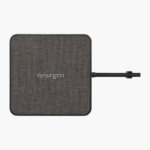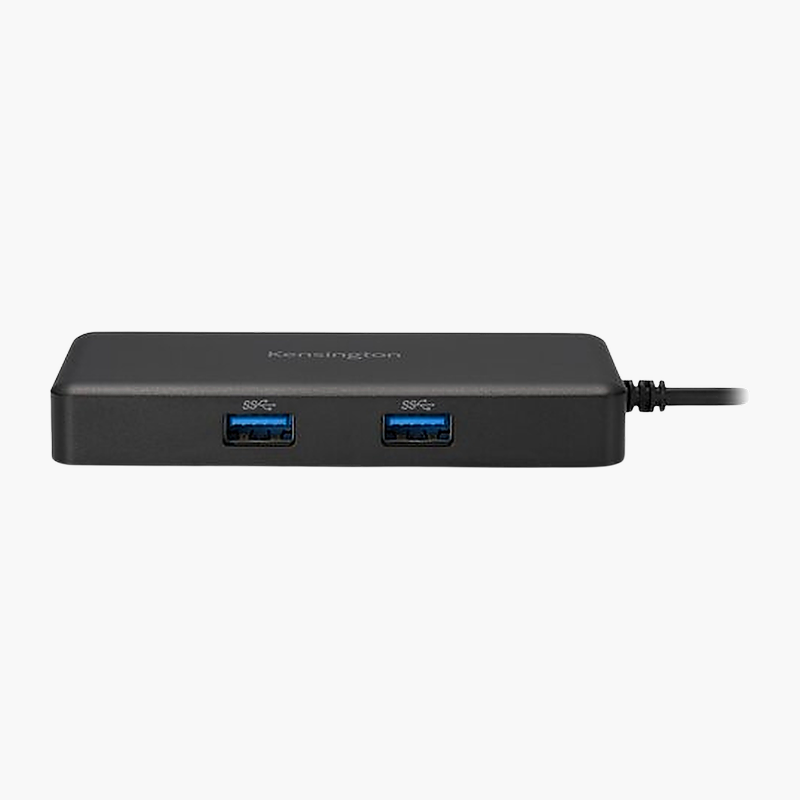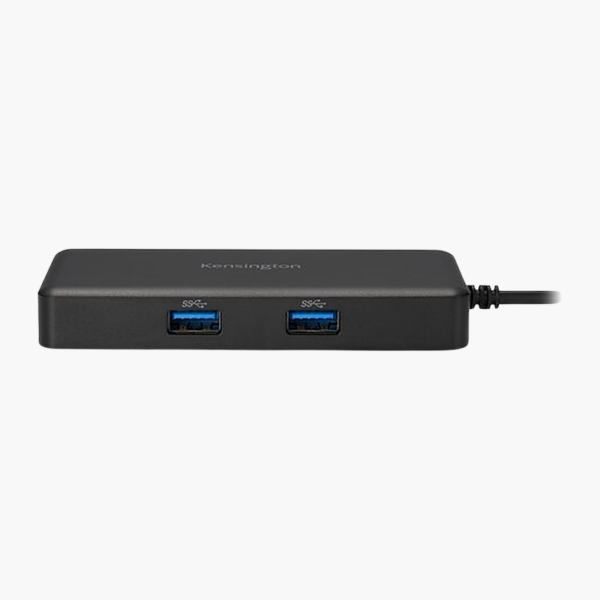
Kensington CH1000 USB-C 4-Port Hub (K39124WW)
Kensington CH1000 USB-C 4-Port Hub (K39124WW) – 2x USB-A Price on RequestRequest a quote for volume pricing, availability and lead time.
Back to products
Kensington MD120U4 USB4 Portable Docking Station (K32850WW)
Kensington MD120U4 USB4 Portable Docking Station (K32850WW) – 100W, 2 Displays Price on RequestRequest a quote for volume pricing, availability and lead time.

Kensington G1000P USB-C Mini Dock (K35200WW)

SKU: K35200WW
  • 30-Day Hassle Free Returns
  • Secure Payment Options

Price on RequestRequest a quote for volume pricing, availability and lead time.

Key Value Highlights

  • USB-C power pass-through – Connect your USB-C charger to keep the laptop powered while the ports are in use.
  • Single-display output – Drives an external display for more screen space across spreadsheets, timelines and side-by-side apps.
  • USB-C host connection – One connection carries data, video and power to your laptop.
  • USB-A and USB-C ports – USB-A, USB-C for keyboards, mice, drives and phones.

Description

The Kensington G1000P USB-C Mini Dock connects to your laptop over USB-C and adds HDMI, USB-A and USB-C ports. It passes USB-C charging through to your laptop and drives an external display. It is built for travel and laptops that are short on ports.

One connection, every port you need.

Turn One Port Into a Full Set of Connections

Thin laptops and compact desktops often ship with only one or two ports, leaving no room for a monitor, USB drive, wired network and charger at the same time.

The Kensington G1000P USB-C Mini Dock adds HDMI, USB-A and USB-C ports and passes USB-C charging through to your laptop. It drives an external display, so you can connect a monitor or projector at the same time.

External Display Output

Display support: Single external display. Video outputs: HDMI. Display count and resolution depend on your laptop’s graphics and connection.

Ports for Every Peripheral

USB connectivity: USB-A; USB-C.

Setup Instructions

How to Set Up the Kensington G1000P USB-C Mini Dock

  1. Connect the hub to your laptop’s USB-C port with the included cable.
  2. For charging, connect your laptop’s USB-C power adapter to the hub’s Power Delivery input port.
  3. Connect your monitor or projector to the HDMI port.
  4. Plug in your USB devices.
  5. Open your operating system’s display settings to arrange the external screen.

Overview

BrandKensington
ModelG1000P USB-C Mini Dock
Product TypeUSB-C Hub
Host ConnectionUSB-C
Laptop Charging (Power Delivery)USB-C power pass-through
Display SupportSingle external display
Video OutputsHDMI
Video TechnologyNative (DP Alt Mode)
USB-A PortsUSB-A
USB-C / Thunderbolt PortsUSB-C
OS CompatibilityWindows, macOS, ChromeOS
Form FactorPortable hub
Part NumberK35200WW
ConditionBrand New
In the BoxHub, host cable, quick start guide

Frequently Asked Questions

Find answers to common questions about this product.

Customer Reviews

Reviews

There are no reviews yet.

Be the first to review “Kensington G1000P USB-C Mini Dock (K35200WW)”

Your email address will not be published. Required fields are marked *