
Networking
Shop all 595 products
Reliable Wi-Fi 6 coverage for high-density offices, schools and hotels.
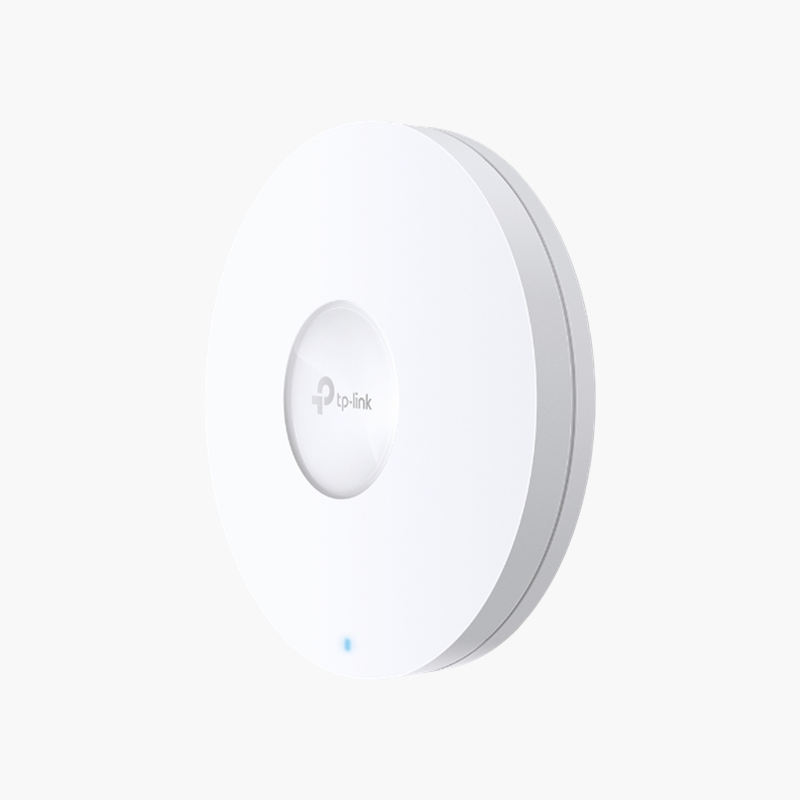
The TP-Link EAP670 V2 is a Wi-Fi 6 access point using 802.11ax, delivering up to 4804 Mbps (5 GHz) + 574 Mbps (2.4 GHz). It has 1 x 2.5 Gigabit Ethernet port and is powered by 802.3at PoE+ or 12V DC. Built for high-density offices, schools and hotels, it is managed through the Omada app.
Why Consumer Routers Struggle to Cover a Business
A single consumer router in a corner office leaves dead zones, slows down as more phones and laptops join, and offers no way to separate guests from staff. Range extenders add hops and cut throughput further.
The EAP670 V2 is designed to be placed where users are, on a ceiling or wall, and connected back to the network by Ethernet. Wi-Fi 6 features such as OFDMA, MU-MIMO and target wake time let it serve many devices at once with lower latency and better battery life for clients.
Multiple SSIDs, VLAN tagging and guest isolation keep business and visitor traffic apart, and Omada app provides one place to configure, monitor and update every access point.
Performance Where Users Work
With up to 4804 Mbps (5 GHz) + 574 Mbps (2.4 GHz), the EAP670 V2 handles video calls, cloud apps and file transfers for high-density offices, schools and hotels. Adding more access points on the same network extends coverage with seamless roaming between them.
Simple Installation and Management
Powered by 802.3at PoE+ or 12V DC lets the access point run from a single Ethernet cable, so it can be placed in the best spot for coverage rather than near a power outlet. Management via Omada app, Omada cloud or hardware/software controller keeps firmware, settings and security consistent.
How to Set Up the TP-Link EAP670 V2
- Choose a central mounting position (ceiling or high on a wall) away from metal obstructions, and fit the mounting bracket.
- Run an Ethernet cable from a PoE switch or injector to the access point and connect the 1 x 2.5 Gigabit Ethernet port.
- Power on, then adopt or set up the access point using Omada app.
- Create your SSIDs (staff and guest), set WPA2/WPA3 security and VLANs, and update to the latest firmware.




Reviews
There are no reviews yet.