
Networking
Shop all 595 products
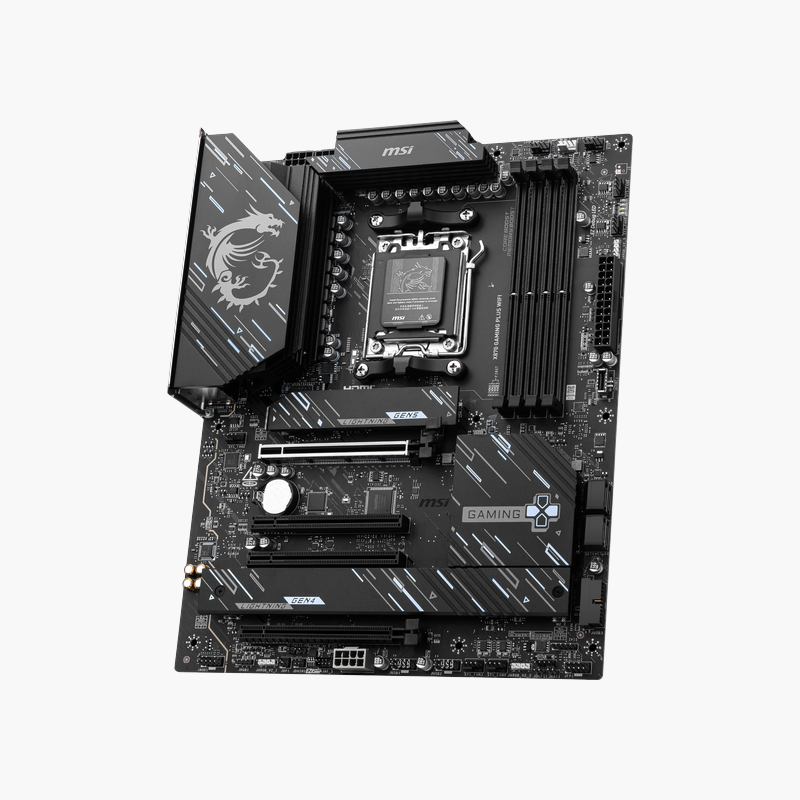
A full-featured X870 board that gives Ryzen builders PCIe 5.0, USB4 and 5G networking without paying flagship prices.
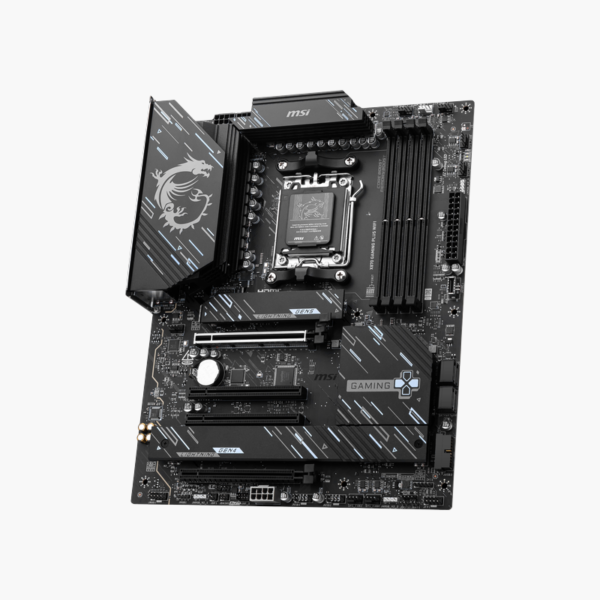
The MSI X870 Gaming Plus WiFi is an ATX motherboard for AMD Socket AM5. It pairs the X870 chipset with a PCIe 5.0 graphics slot, a Gen5 M.2 slot, USB4, 5Gbps Ethernet and Wi-Fi 7. It suits gamers and creators building or upgrading a Ryzen 9000 or 7000 system who want current connectivity at a mid-range price.
Why the Chipset Choice Matters for a New Ryzen Build
Older or entry-level AM5 boards often save money by dropping PCIe 5.0, USB4 or faster networking. That is fine on day one, but it limits what you can add later: a Gen5 SSD runs at half speed, external drives fall back to 10Gbps, and the network stays at 1G or 2.5G.
AMD requires every X870 board to include USB4 and PCIe 5.0 for graphics and storage. The MSI X870 Gaming Plus WiFi meets that baseline and adds a Realtek 5Gbps LAN controller and a pre-installed Wi-Fi 7 module, so the I/O does not need upgrading for several years.
Three M.2 slots (one PCIe 5.0 x4, one PCIe 4.0 x4 and one PCIe 4.0 x2) plus four SATA ports cover a fast boot drive, a game library and bulk storage without add-in cards.
PCIe 5.0 and USB4 — Bandwidth for the Next Upgrade
The primary x16 slot runs at PCIe 5.0 from the CPU, and the first M.2 slot is wired directly to the processor for Gen5 SSD speeds. The rear USB4 port delivers up to 40Gbps and supports DisplayPort output, so an external NVMe enclosure or a single-cable dock runs at full speed.
DDR5 Support and Practical Build Features
Four DDR5 DIMM slots accept up to 256GB with EXPO profiles and overclocked speeds of 8200+ MT/s, depending on CPU and kit. HDMI 2.1 and USB-C display outputs let you run Ryzen APUs without a graphics card, and the ATX layout (30.5 x 24.4 cm) fits standard mid-tower cases.
Setup Instructions
How to Install the MSI X870 Gaming Plus WiFi
- Install the AM5 processor, DDR5 memory (use slots A2 and B2 for two sticks) and the M.2 SSD while the board is on a flat, static-safe surface.
- Fit the I/O shield, mount the board on the case standoffs, then connect the 24-pin ATX and 8-pin CPU power cables plus the front-panel headers.
- Install the graphics card in the top PCIe 5.0 x16 slot, connect the Wi-Fi antenna, and power on to enter the BIOS.
- Enable the EXPO memory profile, update the BIOS to the latest version from MSI, then install Windows and the MSI chipset, LAN and Wi-Fi drivers.





Reviews
There are no reviews yet.