
Networking
Shop all 595 products
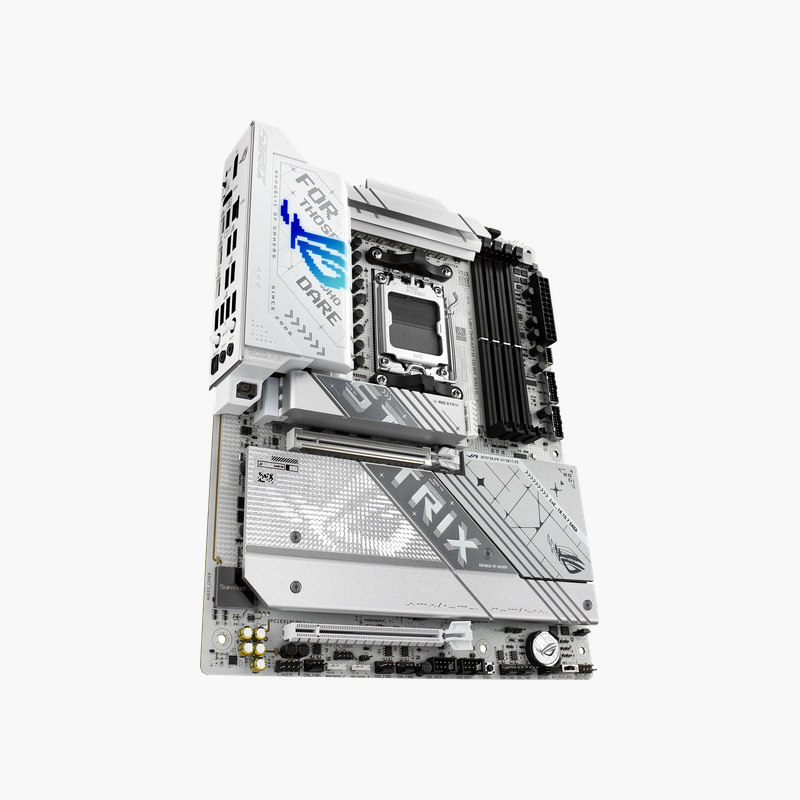
High-end AM5 connectivity with four M.2 slots and dual USB4, in a white ROG Strix design.
The ASUS ROG Strix X870-A Gaming WiFi is an ATX motherboard for AMD Socket AM5 using the X870 chipset. It offers a PCIe 5.0 x16 slot, four M.2 slots (two Gen5), dual USB4, Wi-Fi 7 and Intel 2.5Gb Ethernet. It is built for gamers, streamers and creators running Ryzen 9000 or 7000 processors.
Storage, Bandwidth and Power for Demanding Ryzen Builds
High-core-count Ryzen processors and fast NVMe drives expose weak points in a motherboard: limited M.2 slots, shared lanes and basic VRMs. Builders then add PCIe adapter cards or accept slower drives.
The ROG Strix X870-A provides four onboard M.2 slots. Two run at PCIe 5.0 x4 from the CPU and two at PCIe 4.0 x4 from the chipset, so a creator workstation can hold OS, scratch and archive drives without adapters. The Extreme Engine Digi+ power design feeds Ryzen 9 processors with steady voltage during long renders and gaming sessions.
Rear I/O includes two USB4 ports with DisplayPort Alt Mode, six 10Gbps ports and four 5Gbps ports, covering fast external drives and peripherals in one place.
PCIe 5.0 Graphics and Gen5 NVMe
With a Ryzen 9000 or 7000 CPU, the primary x16 slot runs at PCIe 5.0, and the first two M.2 slots run at Gen5 x4. Note that M.2_2 shares bandwidth with the PCIe 5.0 slot. A second x16-size slot runs at PCIe 4.0 x4 from the chipset.
Networking, Audio and Build Convenience
Wi-Fi 7 (2×2, up to 2.9Gbps on 160MHz) and Bluetooth 5.4 come built in, with an Intel 2.5Gb Ethernet controller for wired use. ROG SupremeFX 7.1 audio uses the Realtek ALC4080 codec with a Savitech amplifier for headphones. The board measures a standard 30.5 x 24.4 cm ATX.
Setup Instructions
How to Install the ASUS ROG Strix X870-A Gaming WiFi
- Install the Ryzen processor, DDR5 memory (A2 and B2 for two DIMMs) and M.2 SSDs before placing the board in the case.
- Mount the board in an ATX case and connect the 24-pin ATX and both CPU power connectors, front-panel, USB-C and fan headers.
- Install the graphics card in the top PCIe 5.0 slot, attach the Wi-Fi antenna, and power on to enter the UEFI BIOS.
- Enable EXPO, update the BIOS through EZ Flash or BIOS FlashBack, then install drivers from the ASUS support page or Armoury Crate.





Reviews
There are no reviews yet.